Train
Training tools
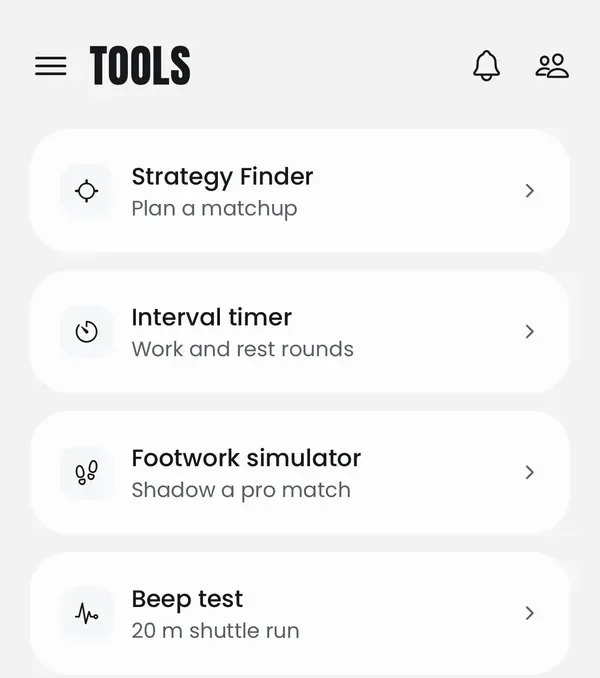
The courtside tools in the GGAB app: an interval timer, a beep test, the footwork simulator and Strategy Finder.
Updated
Where they areLink to this section
In the GGAB app, open the menu and tap Training → Tools. There are four:
| Tool | What it's for |
|---|---|
| Strategy Finder | Plan a matchup against your next opponent. See Strategy Finder. |
| Interval timer | Work and rest rounds, timed for you. |
| Footwork simulator | Shadow a pro match on court. See the footwork simulator. |
| Beep test | The 20 m shuttle run. |
The interval timer and beep test keep the screen on while they run, so you can prop your phone courtside.
Interval timerLink to this section
Set it upLink to this section
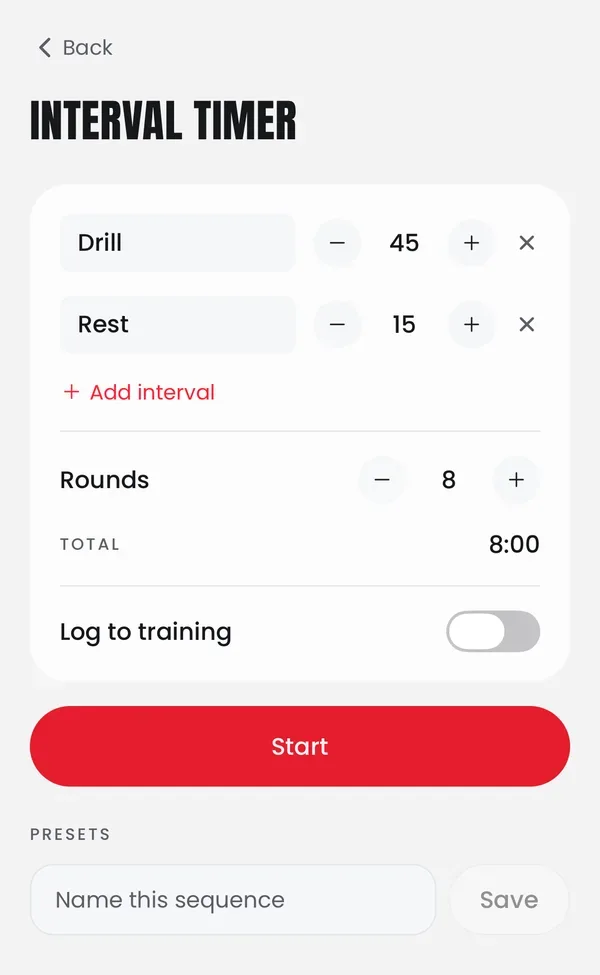
- Tap Interval timer.
- Each row is one interval: a name and a length. Tap the name to change it, and use the minus and plus buttons to change the time in 5-second steps.
- Add interval adds another row, up to 8. The x removes one.
- Set Rounds, up to 99. Total shows the whole session's length.
- Turn on Log to training if you want finished runs in your training log.
- Tap Start.
It starts on 45 seconds of Drill and 15 seconds of Rest, eight times over, and remembers what you used last.
Name an interval Rest, Break, Recover or Pause and it plays the rest cue. Anything else plays the work cue.
While it runsLink to this section
You see the interval's name, the time left, and what's next. Tap Pause (then Resume) or Skip interval.
When it ends, Go again runs it once more, and Edit intervals takes you back to setup.
Save a sequenceLink to this section
Under Presets, type a name in Name this sequence and tap Save. Tap a saved preset to load it, or the bin to delete it. Presets stay on that phone.
Log itLink to this section
With Log to training on, a finished run is added to today's training session as a Drill activity, with your intervals in its notes. If you have no session today, it starts one called "Interval session". The time logged leaves out pauses.
Tap Added to today's session or Logged as a new session today on the finish screen to open it.
Beep testLink to this section
The beep test is the 20 m multistage fitness test. The app plays the beeps, and you run between two lines.
Run itLink to this section
- Mark two lines 20 m apart.
- Tap Beep test. Choose Start at level if you don't want to start at 1, and leave Log to training on to keep the result.
- Tap Start the test (or Start at level and the level you picked).
- Reach the far line before each beep. Every level, the beeps come faster.
- When you can't make the line in time, tap the screen. Stop here? asks to check: tap I'm out, or Keep going.
Level 1 runs at 8.5 km/h and each of the 21 levels is 0.5 km/h faster.
Your resultLink to this section
Your score is the last shuttle you reached, written as level and shuttle, such as 9.5. You also see your Shuttles, Distance, Speed held and Est. VO2 max. VO2 max is estimated from the speed you held, not measured.
With Log to training on, the test is added to today's training as a Cardio activity, with your score kept as a result. If you have no session today, it starts one called "Beep test". That lets you track it over time and lets GGAB read it when you ask about your fitness.
Related guidesLink to this section
This page answers
- Where are the training tools in the app?
- How do I use the interval timer?
- How does the beep test work?
- Can the interval timer log to my training?
- Where does my beep test score go?
Still need help?
Browse all guides or send our team a message.